How To Containerize A Python Flask App
In this article, we will create a Docker container for a python flask app that serves a Restful GET endpoint.
Preparation
- Create a requirements file for install the required pip packages. Create a text file called
requirements.txt
flask
flask_restx
install flask_cors
- Execute the command from the command prompt to install the package requirements
pip install -r requirements.txt
-
Create test app, called app.py app.py
-
Test App by executing the app from the command prompt.
python3 app.py
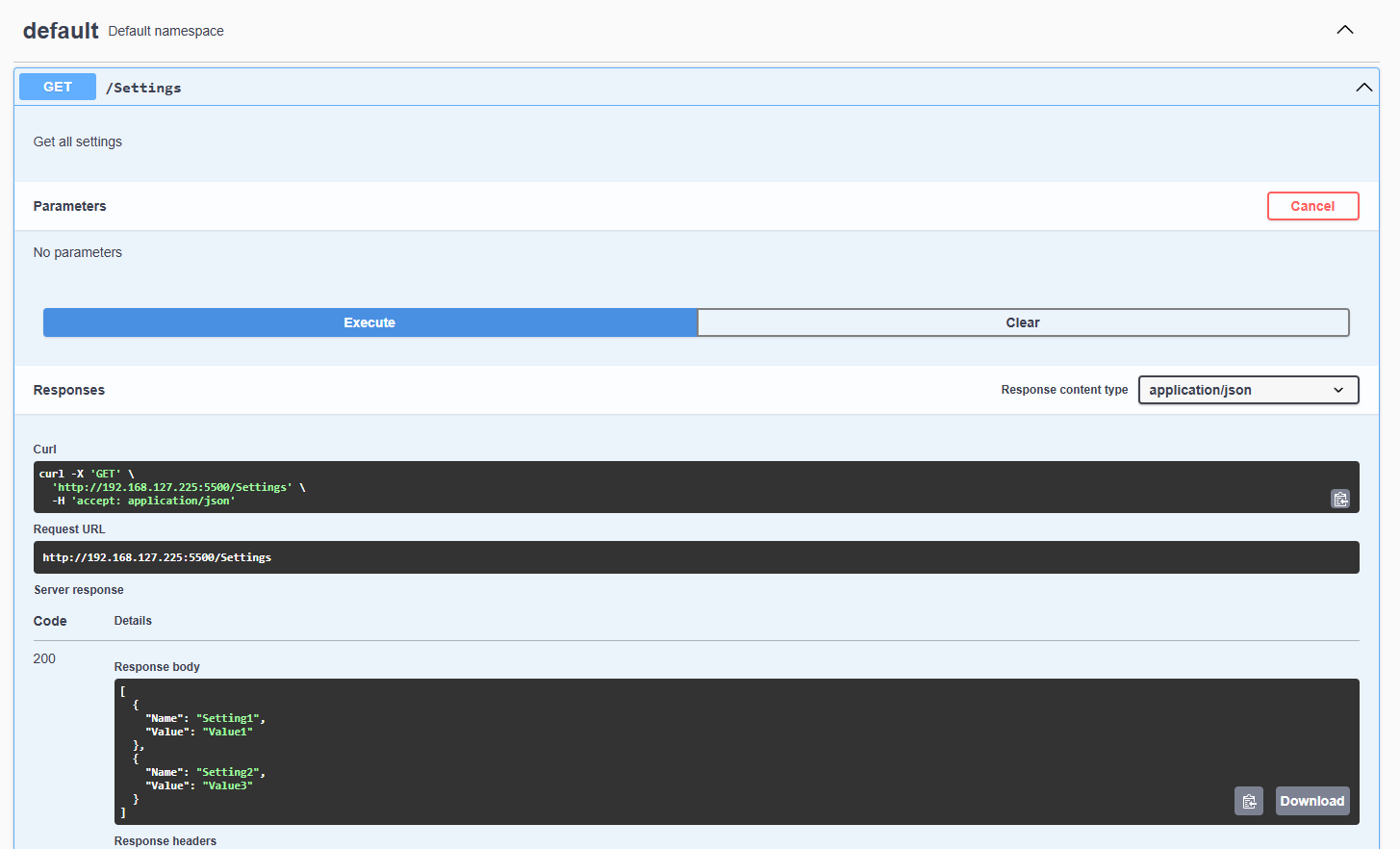
- Open a web browser and navigate to http://127.0.0.1:5500. Use the swagger page to confirm the application is working as expected. In this simple app, executing the get will display a JSON list of settings.
Containerizing The App
- Create a Dockerfile in the same directory as your app.py file
# Use the official Python base image
FROM python:3.9-slim

# Set the working directory
WORKDIR /app

# Copy requirements file to the container
COPY requirements.txt /app/

# Install dependencies
RUN pip install --no-cache-dir -r requirements.txt

# Copy the application code to the container
COPY app.py /app/

# Expose the application's port
EXPOSE 5500

# Define the command to run the application
CMD ["python", "app.py"]
- Create a .dockerignore file to avoid unnecessary files being copied to the container
__pycache__/
*.pyc
*.pyo
*.pyd
.env
- Run the following command in the directory containing the Dockerfile to build the Docker image
docker build -t flask-app .
- Run the container based on the image
docker run -d -p 5500:5500 --name flask-container flask-app
- Open a web browser and navigate to http://127.0.0.1:5500. Use the swagger page to confirm the application is working as expected.