Installing Hugo on Ubuntu
In this guide, we are going to install Hugo on a server running Ubuntu version 22.04.
Installation
-
Install hugo
sudo snap install hugo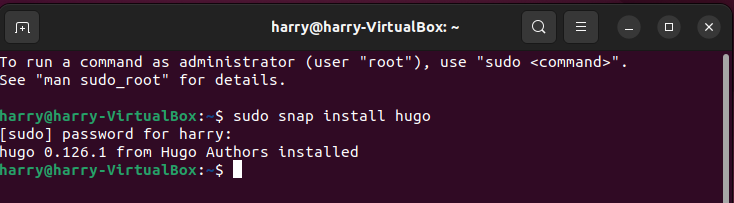
-
Install GIT
sudo apt-get install git-all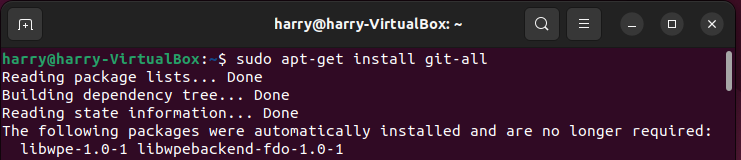
-
Confirm Hugo is installed by checking the version number
hugo version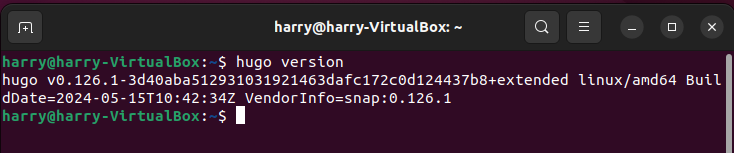
Creating First Website
-
Create a new site called quickstart
hugo new site quickstart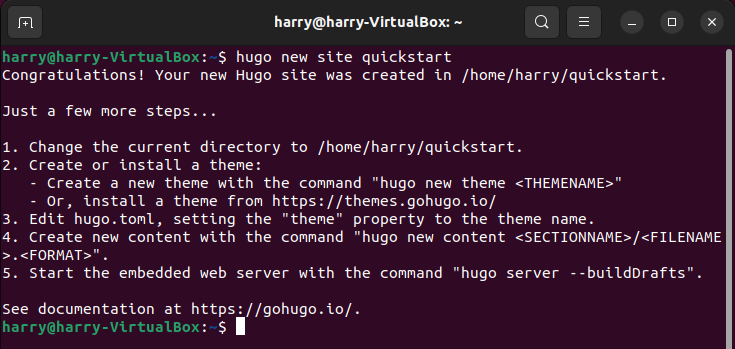
-
Change directory
cd quickstart -
Start a GIT repository
git init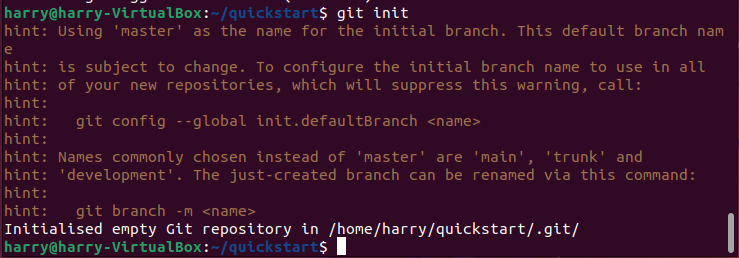
-
Clone the Ananke theme into the themes directory, adding it to your project as a Git submodule.
git submodule add https://github.com/theNewDynamic/gohugo-theme-ananke.git themes/ananke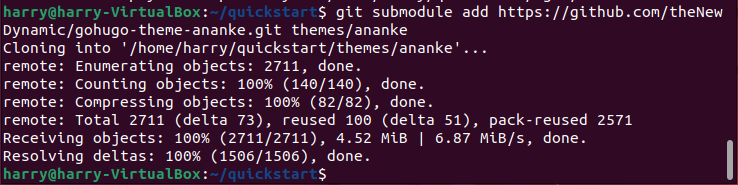
-
Append a line to the site configuration file, indicating the current theme.
echo "theme = 'ananke'" >> hugo.toml
-
Start Hugo’s development server to view the site.
hugo serve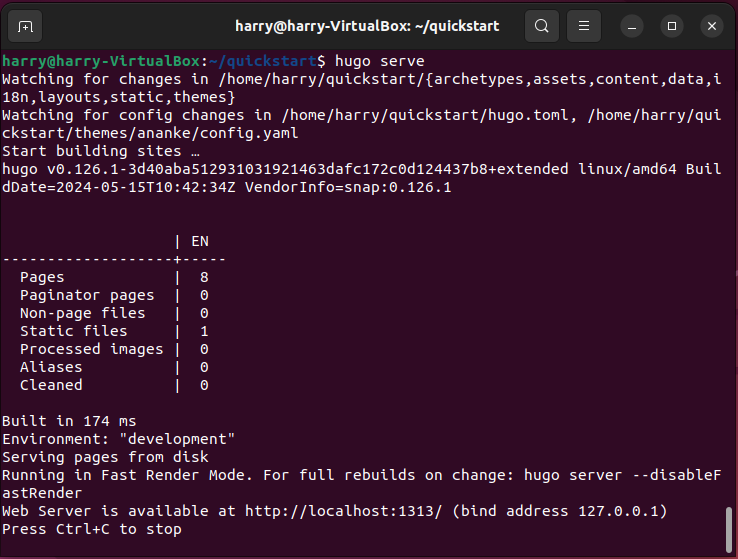
-
Using a web browser navigate to the locally hosted website http://localhost:1313.
Creating First Post
-
To create a new post, run the command
hugo new content posts/my-first-post.md. The command will create a new file in the directorycontent\posts
-
Edit the new file using a text editor
nano content\posts\my-first-post.md
-
Change the draft=false to draft=true in the header section. Then add some markdown content to the file. To save the changes press
control + oto exit presscontrol + x.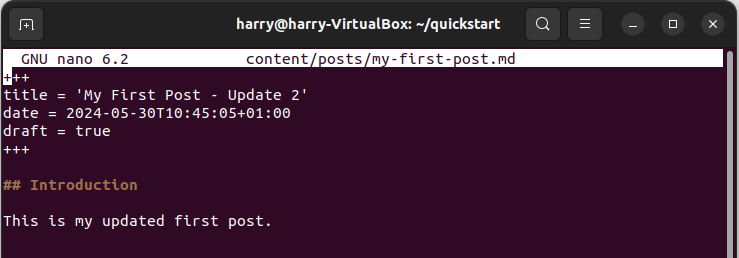
-
Using a web browser navigate to page
http://localhost:1313/posts/my-first-post/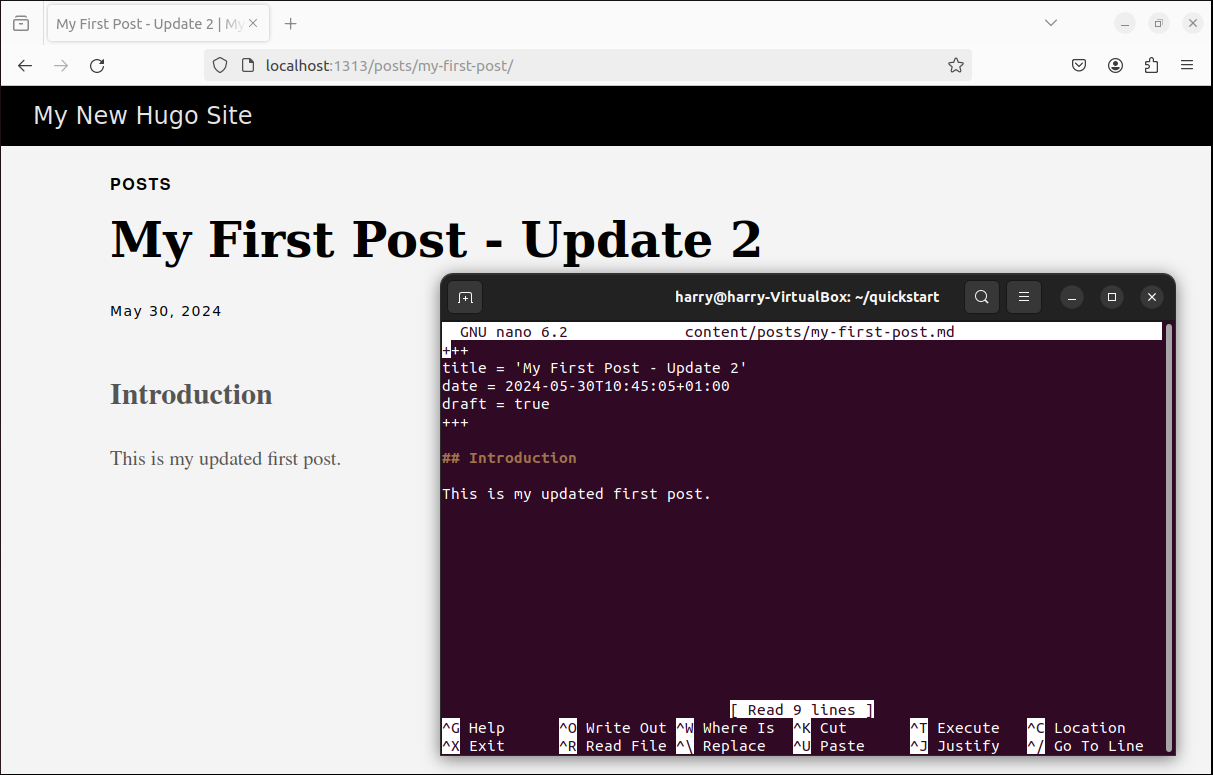
Deploying
hugo --gc --minifyrclone sync --interactive --sftp-host sftp.example.com --sftp-user www-data --sftp-ask-password public/ :sftp:www/
Theme
- https://themes.gohugo.io/themes/hugo-flex/
- https://github.com/adityatelange/hugo-PaperMod/wiki/Installation
Related Sources
- https://gohugo.io/installation/linux/
- https://git-scm.com/book/en/v2/Getting-Started-Installing-Git
- https://gohugo.io/getting-started/quick-start/
- https://gohugo.io/hosting-and-deployment/deployment-with-rclone/
- https://gohugo.io/hosting-and-deployment/deployment-with-rclone/