Archive for the ‘Programming’ Category.

Displaying An Image With Python Tkinter

The aim of the tutorial is to display an image using Tkinter. The image will change when a button is pressed.

Step 1

Create the Tkinter window.

import tkinter as tk

win = tk.Tk()
win.geometry("750x450")

win.mainloop()

When executed the code should generate a window 750 by 450.
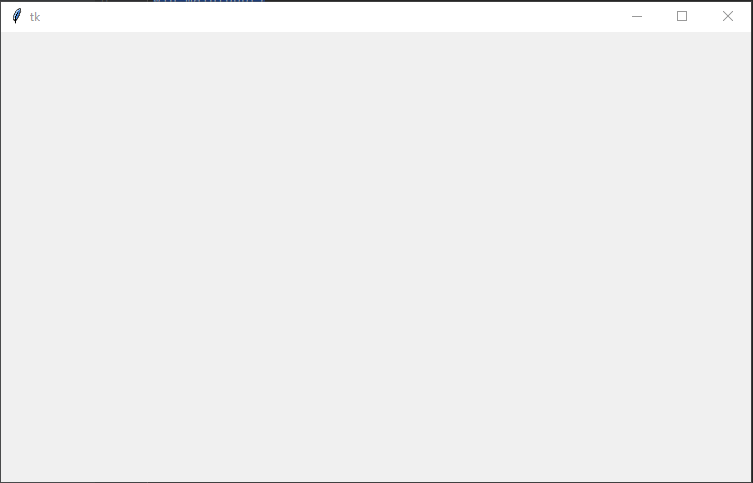
TK window

Step 2

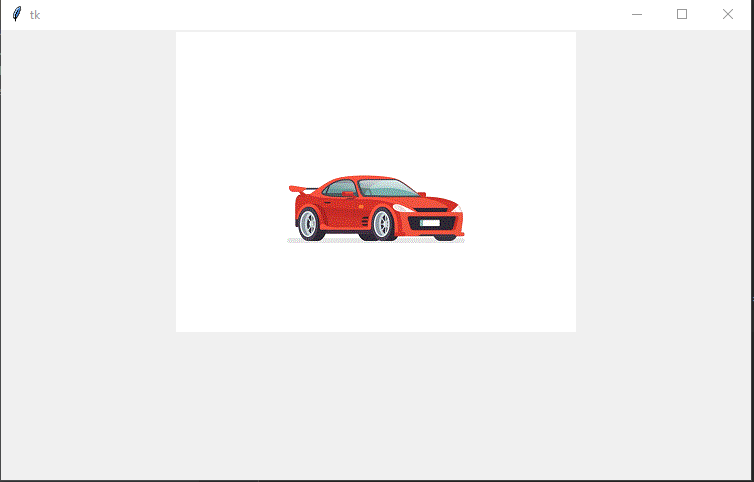
Display the image in the window. The code will load the image into a variable called photo. The code then adds a Label to the window of the type image and populates the label with the photo. In this example, the image is called car-jump.gif and the python code will assume the image file is in the same directory as the python code.

import tkinter as tk

win = tk.Tk()
win.geometry("750x450")

photo = tk.PhotoImage(file='car-jump.gif')
image = tk.Label(win, image=photo)
image.pack()

win.mainloop()

When executed the code will create a window with an image.
Step 4

Add a button to the window. First, we are going to add a button to the window and confirm the button will print a message when clicked. In the next step, we will link the button to the image.

import tkinter as tk


def change_image():
    print("Button has been clicked")


win = tk.Tk()
win.geometry("750x450")

photo = tk.PhotoImage(file='car-jump.gif')
image = tk.Label(win, image=photo)
image.pack()

button = tk.Button(win, text="Click to change image", command=change_image)
button.pack()

win.mainloop()

When executed the window should show the image and a button.
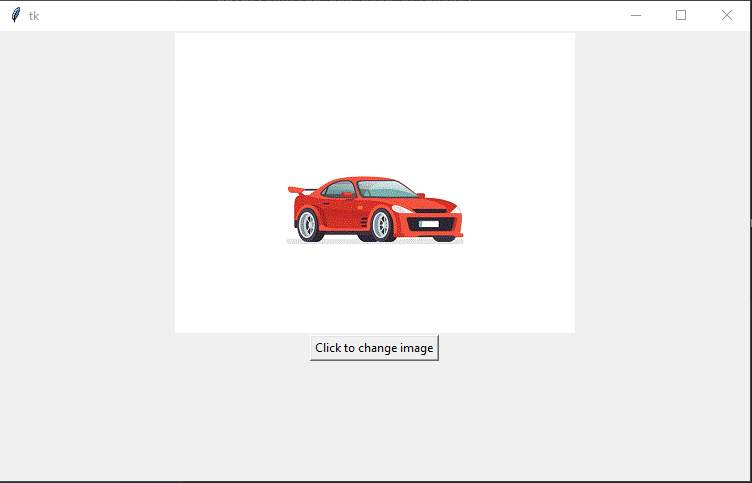
Tk window with image and button

In the console window, you should see the message “Button has been clicked”, every time the button has been clicked.

Step 5

In this step we will add the code to the change_image function that will change the image from car to a flower. In this example, the code assumes the flower.gif file will be in the same folder as the python code.

import tkinter as tk


def change_image():
    global show_car, image
    filename = 'not set'
    if show_car:
        filename = 'car-jump.gif'
        show_car = False
    else:
        filename = 'flower.gif'
        show_car = True
    print("Setting image to " + filename)
    photo2 = tk.PhotoImage(file=filename)
    image.configure(image=photo2)
    image.image = photo2


win = tk.Tk()
win.geometry("750x450")

photo = tk.PhotoImage(file='car-jump.gif')
image = tk.Label(win, image=photo)
image.pack()

button = tk.Button(win, text="Click to change image", command=change_image)
button.pack()

show_car = False
win.mainloop()

When executed the code will show the car image.
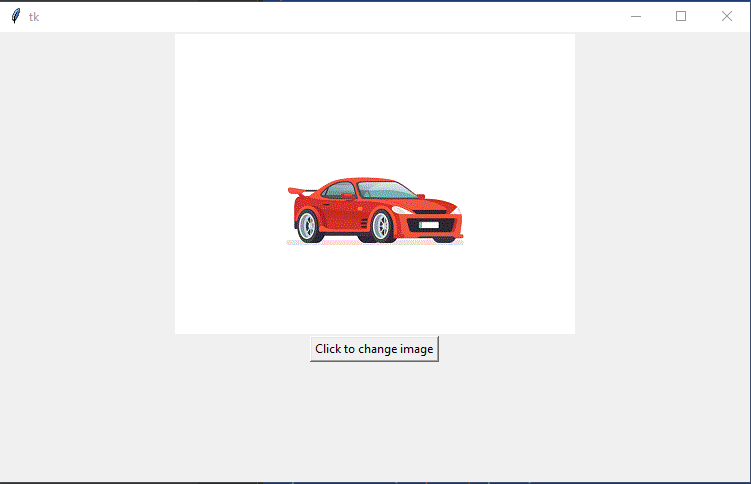
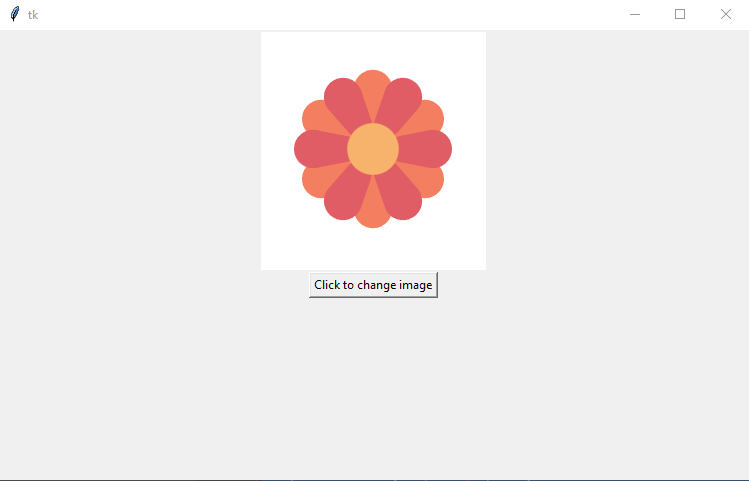
When the button is clicked the image will change to a flower.
Free Disk Space Inno

To show a label on the Inno wizard page displaying the amount of require disk space. Add the following code section to the installer script.

[Code]
procedure InitializeWizard;
begin
WizardForm.DiskSpaceLabel.Visible := True; // False to hide
end;

Download installer script FreeDiskSpace.iss

Check DotNet Framework is installed during Inno Setup

To check that DotNet framework is installed during an Inno install. Add the following code section to the install script.

; Check if dot net is insalled
[code]
function FrameworkIsNotInstalled: Boolean;
begin
Result := not RegKeyExists(HKEY_LOCAL_MACHINE, 'Software\Microsoft\.NETFramework\policy\v4.0');
end;

// Install dot net with feedback
[Code]
procedure InstallFramework;
var
StatusText: string;
ResultCode: Integer;
begin
StatusText := WizardForm.StatusLabel.Caption;
WizardForm.StatusLabel.Caption := 'Installing .NET framework...';
WizardForm.ProgressGauge.Style := npbstMarquee;
try
if not Exec(ExpandConstant('{tmp}\dotNetFx40_Full_x86_x64.exe'), '/q /noreboot', '', SW_SHOW, ewWaitUntilTerminated, ResultCode) then
begin
// you can interact with the user that the installation failed
MsgBox('.NET installation failed with code: ' + IntToStr(ResultCode) + '.',
mbError, MB_OK);
end;
finally
WizardForm.StatusLabel.Caption := StatusText;
WizardForm.ProgressGauge.Style := npbstNormal;
end;
end;

In the files section add the dotnet installer file. Note the flags AfterInstall and Check that will call the functions to check if DotNet is installed and instal if required.

Source: "C:\Example\dotNetFx40_Full_x86_x64.exe"; DestDir: {tmp}; Flags: deleteafterinstall; AfterInstall: InstallFramework; Check: FrameworkIsNotInstalled

Download the installer script CheckDotNet.iss

Check if a program exists before installing with Inno

To check if a program exists before installing with Inno add the following code section to the installer script. In this example we will be testing for the file “c:\Example\Test.exe”. If the test.exe file exist a message box showing “Program Already Exists” will be displayed and the installer will terminate.

[Code]
function IsMyProgramInstalled: boolean;
begin
result := FileExists('C:\Example\Test.exe');
end;

function InitializeSetup: boolean;
begin
result := not IsMyProgramInstalled;
if not result then
MsgBox('Program Already Exists', mbError, MB_OK);
end;

Download the installer script IsMyProgramInstalled.iss

Create empty folders using Inno

When installing a program using Inno, to create an empty directory you will need to add a dirs section to the installer script.

[Dirs]
Name: "{app}\Example1"

Download installer script CreateEmptyDirectories.iss

Automatically Get Target Exe Version in Inno

This example shows how to automattically update the version numbers for you Inno installer based on the version number of the target exe program.

In this example the installer will be installing a program called notepad.exe.

At the top of the script. The version number from the target exe is stored in the variable MyAppVersion

#define MyAppVersion GetFileVersion("notepad.exe")

In the Setup section the MyAppVersion is used to set the installer version number, product version number and used as part of the installer name.

AppVersion={#MyAppVersion}
AppVerName={#MyAppName} {#MyAppVersion}
OutputBaseFilename=Setup{#MyAppName}{#MyAppVersion}
VersionInfoVersion={#MyAppVersion}

Download the full installer code AutoGetVersionNumber.iss

Custom Inno Theme

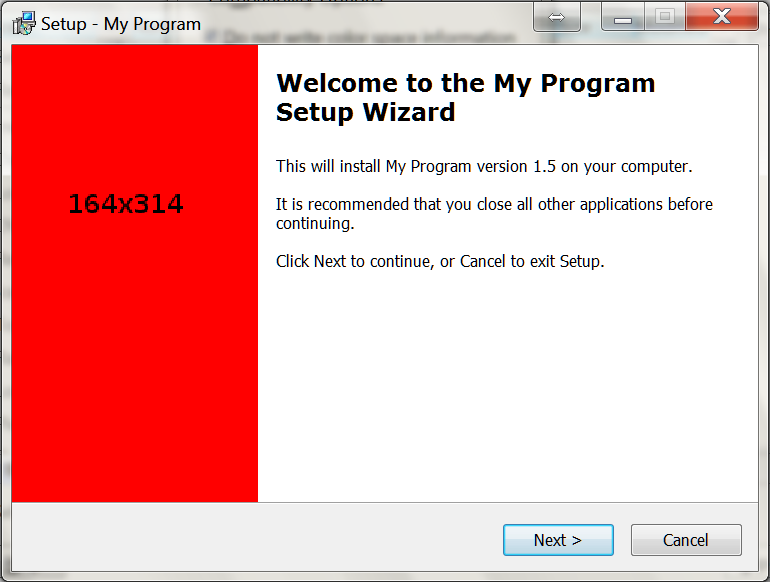
To customise the look of your inno installer, you can modify the images displayed on the install pages. The large image on the left hand side of the instal pages is set using the parameter WizardImageFile. The small image shown on the top right of the install pages is set using the parameter WizardSmallImageFile.

In this example I have replaced the standard images with a large red image. Hopefully you will make an image that is more appealing.

InstallLargeImage

InstallSmallImage

The WizardImageFile and WizardSmallImageFile parameters should be defined in the [setup] section of the inno install script. In this example the images are in the folder c:\InstallFiles and are called Small.bmp and Large.bmp.


[Setup]
WizardSmallImageFile="C:\InstallFiles\Small.bmp"
WizardImageFile="c:\InstallFiles\Large.bmp"

The files must be saved as 256bit bmp files. I created my examples files using GIMP. To save the images using GIMP.

  1. Click File > Export As…
  2. Select a location for the file, enter a file name and then click export
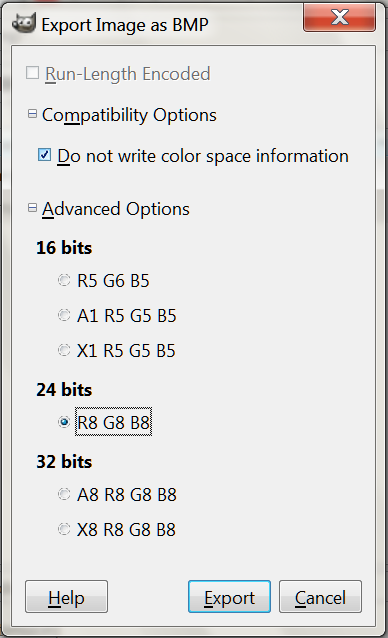
  3. Expand the ‘Compatibility Options’ and check ‘Do not write color space information’. Expand the ‘Advanced Options’ and select 24 bits R8 G8 B8 and then click the export button
  4. Export

    The small image should be 55×58 pixels. The large image should be 164×314 pixels.

    Download full Inno script CustomImage.iss
    Download images Large.bmp Small.bmp

C# Open File Dialog

            // Configure open file dialog box 
            Microsoft.Win32.OpenFileDialog dlg = new Microsoft.Win32.OpenFileDialog();
            dlg.Title = "Select File"; // dialog title
            dlg.FileName = ""; // Default file name 
            dlg.DefaultExt = ".csv"; // Default file extension 
            dlg.Filter = "CSV File (.csv)|*.csv|All Files (*.*)|*.*"; // Filter files by extension 

            // Show the dialog and process result
            if (dlg.ShowDialog() == true)
            {
                string filename = dlg.FileName;
            }

Installing Inno Installer

Detailed below is the procedure for installing Inno.

  • Download the setup file. I will be installing version 5.5.5 http://www.jrsoftware.org/download.php/is.exe
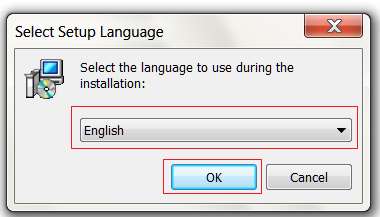
  • Select your language from the combo box and then click okinno1
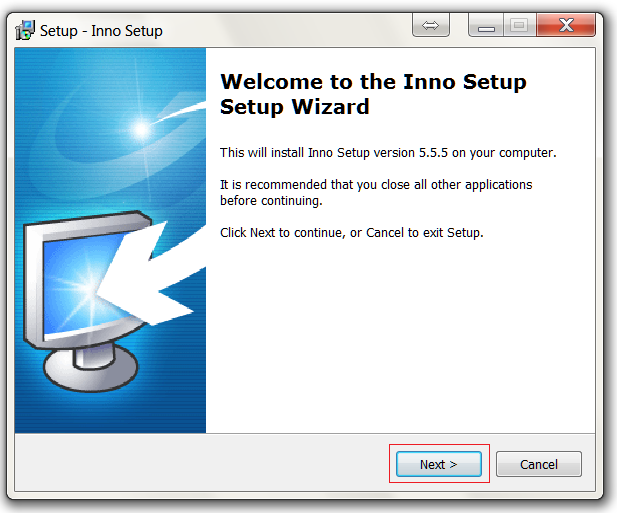
  • Click the Next button on the welcome screen.inno2
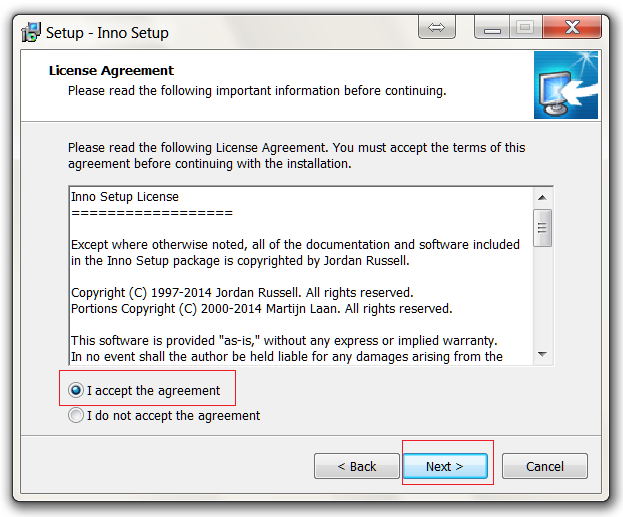
  • Select Accept and then click the next buttoninno3
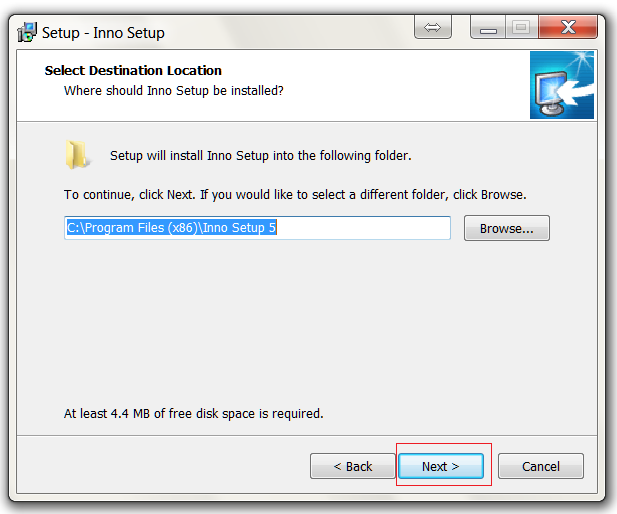
  • Change the install location if required and then click the next button.inno4
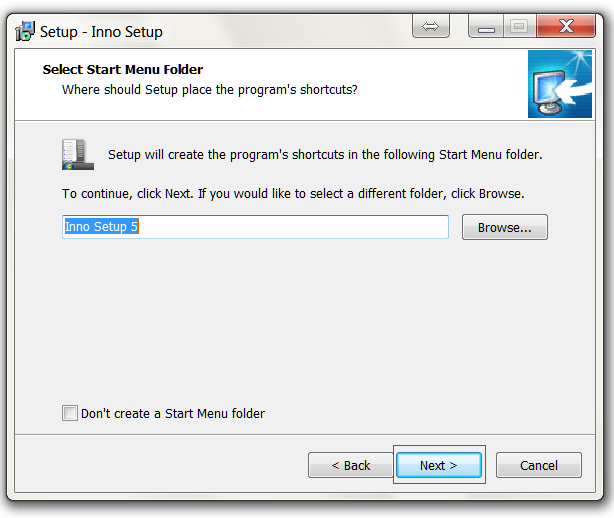
  • Change the start menu icon location if required and then click the next button.inno5
  • Click Next button to to install the preprocessor. inno6
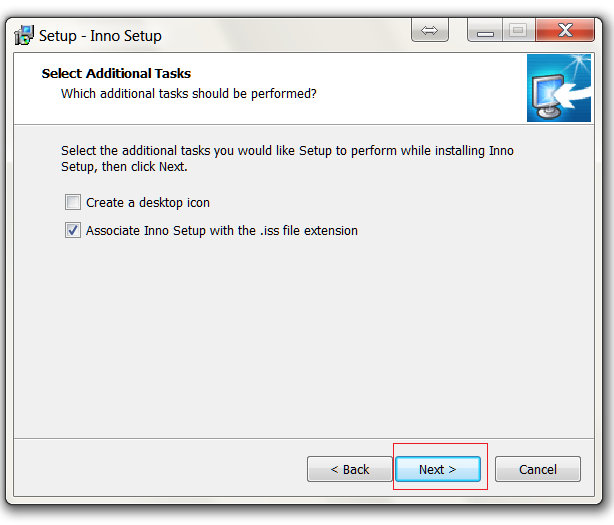
  • Enable the additional settings if required and then click the next button.inno7
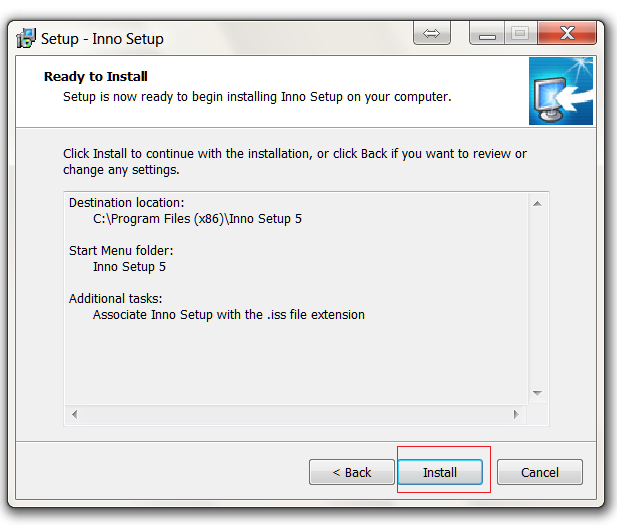
  • Click the install button to start the installation.inno8
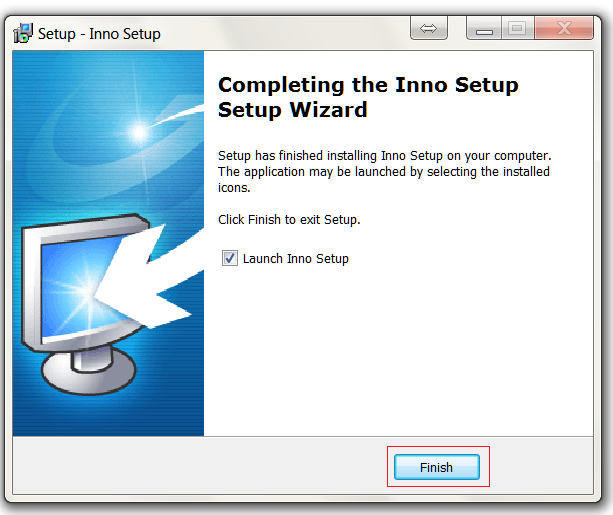
  • Click the finish button to complete the install.inno9

Almost Equal C#

Test if two values are almost equal.

/// 
/// Test if two doubles are approximately equal
/// 
/// Test variable one
/// Test variable two
/// epsilon a measure of equality
/// boolean true = values are approximately equal, false = values are not equal
public static Boolean almostEqual(double a, double b, double eps)
{
    return Math.Abs(a - b) < eps;
}

Example using the function.

double a = 1.234;
double b = 1.235;
double eps = 0.01;
Console.WriteLine("equal = " + almostEqual(a, b, eps).ToString());