Create empty folders using Inno
When installing a program using Inno, to create an empty directory you will need to add a dirs section to the installer script.
[Dirs]

Name: "{app}\Example1"
Download installer script CreateEmptyDirectories.iss
When installing a program using Inno, to create an empty directory you will need to add a dirs section to the installer script.
[Dirs]
Name: "{app}\Example1"
Download installer script CreateEmptyDirectories.iss
This example shows how to automattically update the version numbers for you Inno installer based on the version number of the target exe program.
In this example the installer will be installing a program called notepad.exe.
At the top of the script. The version number from the target exe is stored in the variable MyAppVersion
#define MyAppVersion GetFileVersion("notepad.exe")
In the Setup section the MyAppVersion is used to set the installer version number, product version number and used as part of the installer name.
AppVersion={#MyAppVersion}

AppVerName={#MyAppName} {#MyAppVersion}

OutputBaseFilename=Setup{#MyAppName}{#MyAppVersion}

VersionInfoVersion={#MyAppVersion}
Download the full installer code AutoGetVersionNumber.iss
To customise the look of your inno installer, you can modify the images displayed on the install pages. The large image on the left hand side of the instal pages is set using the parameter WizardImageFile. The small image shown on the top right of the install pages is set using the parameter WizardSmallImageFile.
In this example I have replaced the standard images with a large red image. Hopefully you will make an image that is more appealing.
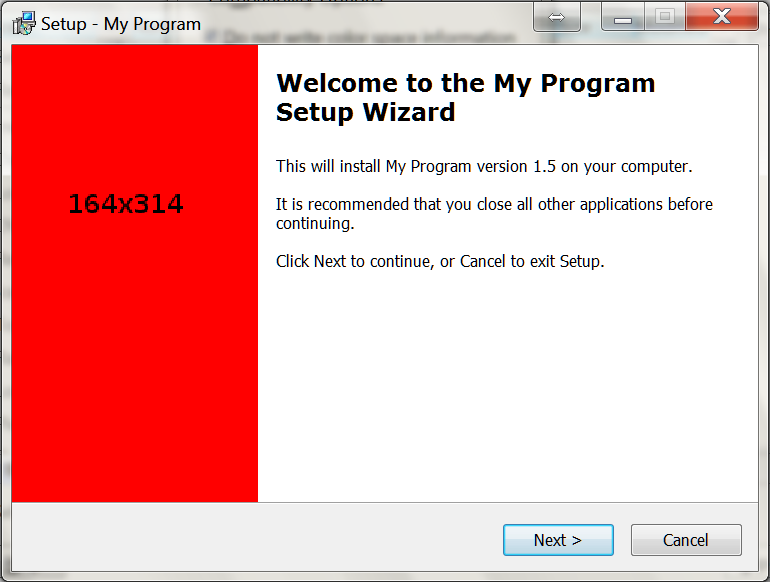

The WizardImageFile and WizardSmallImageFile parameters should be defined in the [setup] section of the inno install script. In this example the images are in the folder c:\InstallFiles and are called Small.bmp and Large.bmp.
[Setup]

WizardSmallImageFile="C:\InstallFiles\Small.bmp"

WizardImageFile="c:\InstallFiles\Large.bmp"
The files must be saved as 256bit bmp files. I created my examples files using GIMP. To save the images using GIMP.
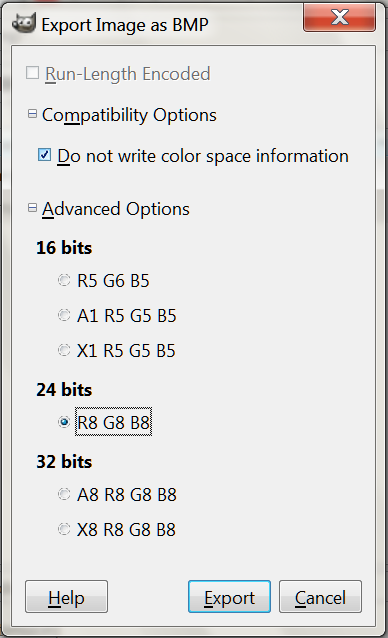
The small image should be 55×58 pixels. The large image should be 164×314 pixels.
Download full Inno script CustomImage.iss
Download images Large.bmp Small.bmp
            // Configure open file dialog box
            Microsoft.Win32.OpenFileDialog dlg = new Microsoft.Win32.OpenFileDialog();
            dlg.Title = "Select File"; // dialog title
            dlg.FileName = ""; // Default file name
            dlg.DefaultExt = ".csv"; // Default file extension
            dlg.Filter = "CSV File (.csv)|*.csv|All Files (*.*)|*.*"; // Filter files by extension

            // Show the dialog and process result
            if (dlg.ShowDialog() == true)
            {
                string filename = dlg.FileName;
            }
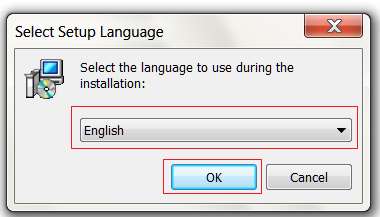
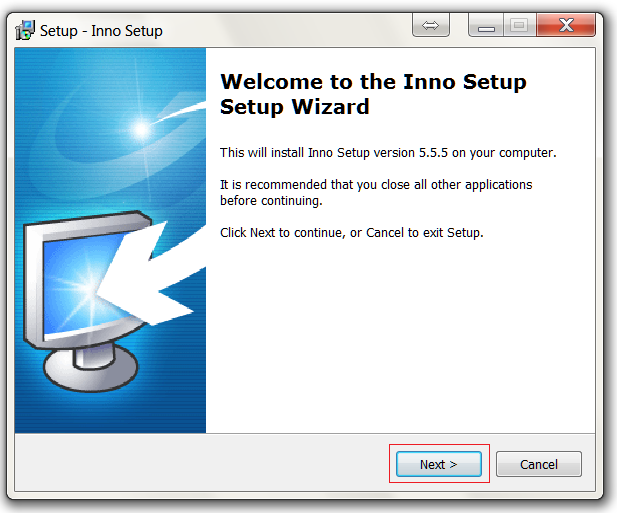
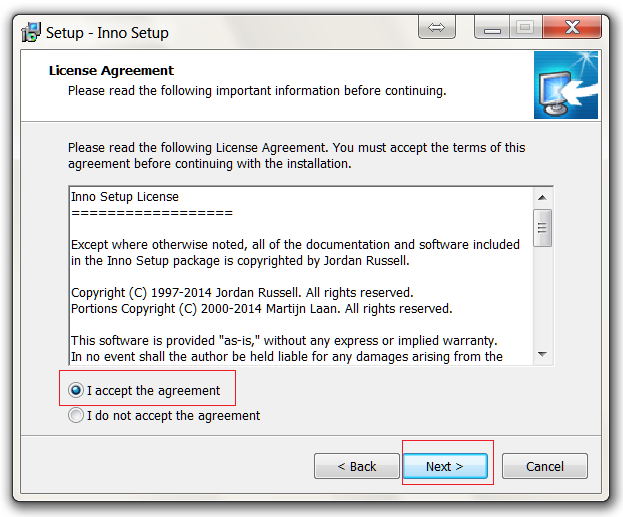
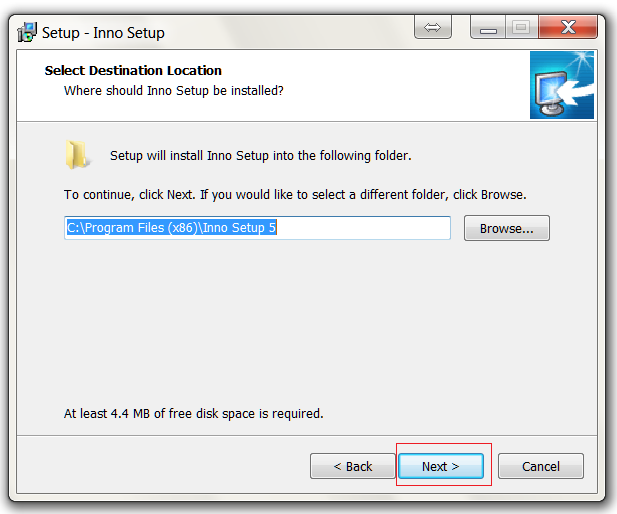
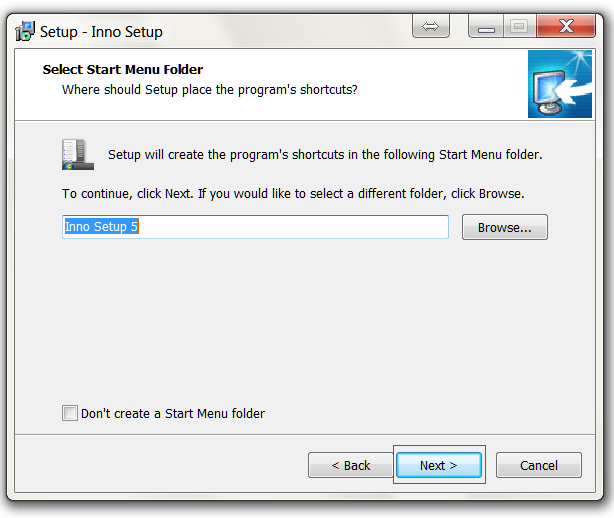
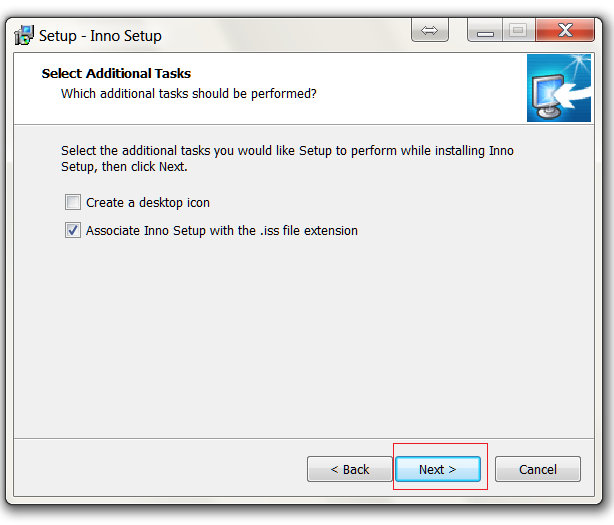
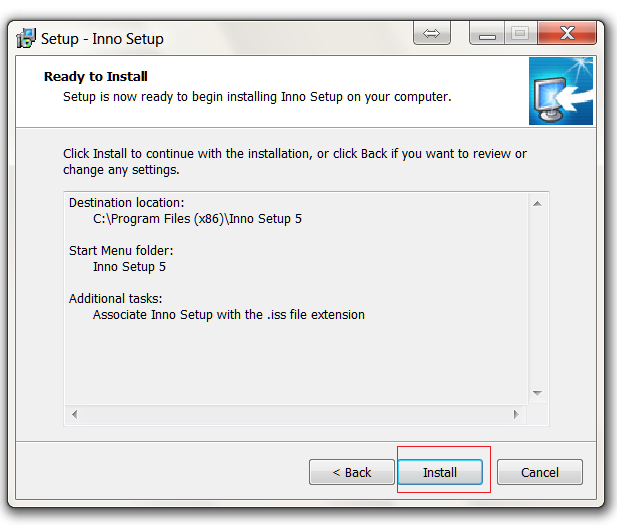
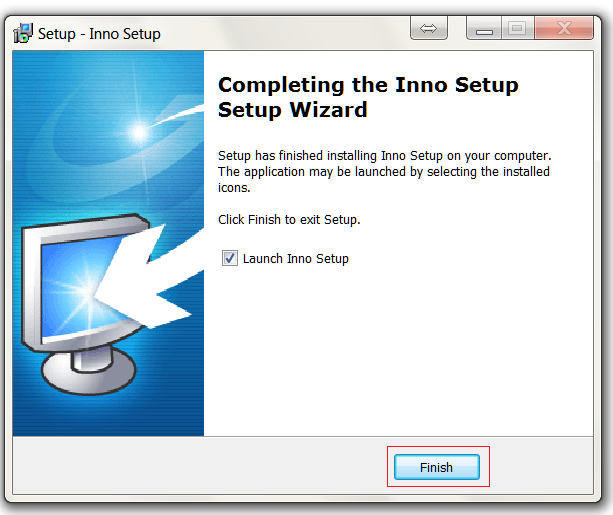
Detailed below is the procedure for installing Inno.

Test if two values are almost equal.
////// Test if two doubles are approximately equal /// /// Test variable one /// Test variable two /// epsilon a measure of equality ///boolean true = values are approximately equal, false = values are not equal public static Boolean almostEqual(double a, double b, double eps) { return Math.Abs(a - b) < eps; }
Example using the function.
double a = 1.234;
double b = 1.235;
double eps = 0.01;
Console.WriteLine("equal = " + almostEqual(a, b, eps).ToString());
A simple SQL example of using the To_Date function to format a date.
INSERT INTO EXAMPLETBL (EXAMPLEID, EXAMPLEDATE) VALUES ('5', TO_DATE('2014-05-08 08:06:24', 'YYYY-MM-DD HH24:MI:SS'))
This simple batch script creates a new folder based on the date and time and then executes a oracle database dump.
REM Backup oracle database

@echo Starting database backup

REM get the current datestamp in the format year-month-day-hour-minute
SET DATESTAMP=%date:~6,4%-%date:~3,2%-%date:~0,2%-%time:~0,2%-%time:~3,2%

REM Create a new directory
md "c:\backup\%DATESTAMP%"

REM backup database
REM Dont forget to change username and password
exp username/password@xe FILE="c:\backup\%DATESTAMP%\databasename.dmp"

@echo Finished backing up database to c:\backup\%DATESTAMP%
/** split a name into the first name and last name
 * @param input The name eg 'John Doe'
 * @return Array containing firstname and lastname eg array('firstname'=>'John', 'lastname'=>'Doe');
 */
function splitname($input)
{
   $output = array("firstname"=>"", "lastname"=>"");
   $space = strpos($input, " ");
   if ($space !== false)
   {
      $output['firstname'] = substr($input, 0, $space);
      $output['lastname'] = substr($input, $space, strlen($input));
   }
   else
   {
      $output['lastname'] = $input;
   }
   return $output;
}
Convert a url data in to Name Value Pairs array.
/** Convert a url data in to Name Value Pairs array
 * @param url The url and the data string
 * @return array of named value pairs
 */
function urlToNvp($url)
{
   $output = array();

   $questionmark = strpos($url, '?');
   if ($questionmark !== false)
   {
      $url = substr($url, $questionmark+1, strlen($url));
   }

   foreach(explode('&', $url) as $data)
   {
      $value = explode('=', $data);
      $output[$value[0]] = $value[1];
   }

   return $output;
}
Here are three examples of using this function
print_r(urlToNvp("www.example.co.uk?p1=one&p2=two"));
print_r(urlToNvp("p1=one&p2=two"));
print_r(urlToNvp("www.example.co.uk?p1=one"));
The result
Array ( [p1] => one [p2] => two )
Array ( [p1] => one [p2] => two )
Array ( [p1] => one )